
What Switching from iPhone to Android Really Involves
Moving from iPhone to Android is the process of copying your personal data—contacts, photos, videos, messages, and app content—from Apple’s iOS system into Google’s Android system using a mix of cloud backups, transfer apps, and manual exports so everything important shows up on your new phone when you sign in.
The catch is that iOS and Android use different data structures, so you cannot rely on dragging files between phones or plugging one into the other and expecting it to work. Instead, you match each type of content to the transfer method that understands it. Contacts and calendars live well in cloud accounts, photos and videos flow through Google’s storage, and messages often need special tools. If you approach your iPhone to Android transfer like a checklist—contacts, media, chats, and documents—you avoid surprises later, like missing numbers or empty galleries. This guide assumes you’re comfortable installing apps and signing into accounts, but you do not need to be “technical” beyond that.
Prepare Both Phones: Backups, Accounts, and Wi‑Fi
Before any switch from iOS data migration, treat preparation as your safety net. Because direct copying between these systems may fail due to structural differences, preparation makes sure you have at least one fallback copy of everything important.
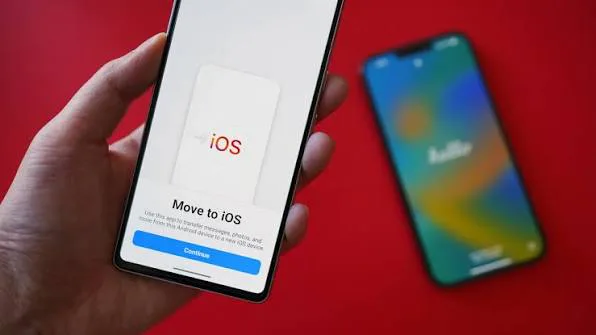
Start by connecting both your iPhone and your new Android phone to the same Wi‑Fi network and confirming that you have a Google account ready to use. Install the Google Drive app on both devices; many Android phones already include it, but on your iPhone you need to download Google Drive from the App Store. Next, create a full backup of your iPhone and store it somewhere safe, such as on a computer using iTunes or via iCloud if you prefer not to involve a PC. This backup won’t directly power the Android setup, but it protects you from accidental deletion or a failed transfer. Finally, on your iPhone install Google’s “Switch To Android” app, which is designed to move your core data to the new phone with minimal fuss.
Step-by-Step: Transfer Contacts, Photos, and Messages
With the groundwork done, the actual iPhone to Android transfer becomes a single, focused session. Think of this as walking through a line: you handle one category at a time and confirm it arrived safely before moving to the next.
- On your iPhone, open Google Drive, sign in with your Google account, go to Backup, and select to back up photos, videos, contacts, calendar events, and supported messenger chats to Google cloud storage.
- In Google Drive’s backup settings, open the section for photos and videos and set quality to High or Original so your images and clips move in the quality you expect. If you want to save space, allow Drive to compress photos and trim videos to Full HD.
- On your new Android phone, sign in with the same Google account during setup; the phone will restore the backed-up photos, videos, contacts, calendar entries, and compatible chats so they appear in your gallery, dialer, and apps.
- If you prefer or need a manual route to transfer iPhone contacts Android, enable Contacts sync in iCloud on your iPhone, log into iCloud on a computer, select Contacts, choose all entries, then export them as a vCard file. Connect your Android phone via cable and copy that file into the phone’s storage so the contacts can be imported.
- For messenger apps like WhatsApp or Viber that keep their own data, use their transfer or backup tools; their dedicated menus can create backups, restore chats, and move entire histories, including media, between phones. After the transfer completes, you should see your chat history and attachments on the Android phone.
This step list covers most of the heavy lifting: moving photos iPhone to Android, handling contacts and calendars, and preserving chat histories. The main “gotcha” is forgetting that some apps store data in their own formats, so you must use their built‑in transfer or backup options instead of relying on system tools. Cloud services and tools like Switch To Android provide the backbone, while messenger-specific menus fill in the gaps for your conversations.
Extra Options for Contacts and App Data
Not every contact or app needs bulk migration. Sometimes you only want to move a few numbers or a particular app’s settings to your new device. In those cases, manual and third‑party methods bridge the gap.
For example, you can move single contacts directly from your iPhone’s phone book without installing extra tools. Open a contact, tap Share Contact, and send it by email or SMS to your new Android phone, where you can add it to the address book. This is handy when you are still setting things up and someone messages you with updated details. For more complex tasks, such as moving messenger histories or other app preferences, dedicated transfer menus or third‑party utilities step in. One transfer menu can handle backups, chat restoration, and migration for WhatsApp, Viber, and similar apps, carrying over both chats and attached files to your new Android. After the operation finishes, the apps show that your conversations, including media, are now present on the new phone.
Why the Move Is Worth It—and What to Watch For
Once your data is safely on Android, you can start enjoying features that are difficult or impossible on iPhone, like split‑screen multitasking, floating windows, and even full desktop modes on some devices for working on a larger screen. These capabilities can change how you use your phone day to day, especially if you rely on productivity apps or file management. At the same time, the different data structures between iOS and Android mean you should keep that iPhone backup around for a while.
If you follow the process methodically—prepare backups, use Google’s cloud storage for core data, and turn to messenger backup tools where needed—you end up with contacts, photos, videos, calendars, and chats that feel continuous across the move. Think of the move as trading ecosystems, not abandoning one; your content comes with you, while you gain Android’s flexibility in how you run apps, manage files, and even experiment with different app sources. With this playbook, the move is less about anxiety and more about setting yourself up for how you want to use a phone next.