


Why WhatsApp’s Mic Mode Shortcut Matters for Call Quality
WhatsApp’s Mic Mode Shortcut is an in-call control on iPhone that lets you switch the microphone between Automatic, Standard, Voice Isolation, and Wide Spectrum modes without leaving the app, so you can tune call audio settings to match your environment for clearer or more natural sound.
If you care about WhatsApp call quality, this update is the difference between fighting your surroundings and taking control of them. Until now, adjusting any mic mode iPhone setting mid-call meant pulling down Control Center, hunting for the right option, and hoping you did not miss a word. Now, WhatsApp puts those controls where they belong: inside the call screen. That shift is more than a small convenience; it’s a statement that call audio settings should work in real time, for real conversations. If your calls matter—work, family, or gaming—there is no excuse to leave them at whatever default your phone picked hours ago.

How to Change Mic Mode Inside a WhatsApp Call
WhatsApp now lets users switch between Voice Isolation, Wide Spectrum, Standard, and Automatic mic modes during active voice and video calls directly from the in-call interface, so you can adapt sound on the fly without interrupting the conversation.
- Start a WhatsApp voice or video call on your iPhone.
- Once connected, look at the bottom of the call screen and tap the “More” button.
- In the menu that appears, tap “Mic Mode” to open your iPhone’s microphone settings from within WhatsApp.
- Choose Automatic, Standard, Voice Isolation, or Wide Spectrum from the system menu.
- Close the menu; iOS applies the mode immediately without ending or interrupting the call, and WhatsApp continues using that setting for future calls until you change it.
You no longer need to exit the app or open Control Center to adjust these options; now, during voice and video calls, you can change the microphone mode directly from within WhatsApp without opening the Control Center.
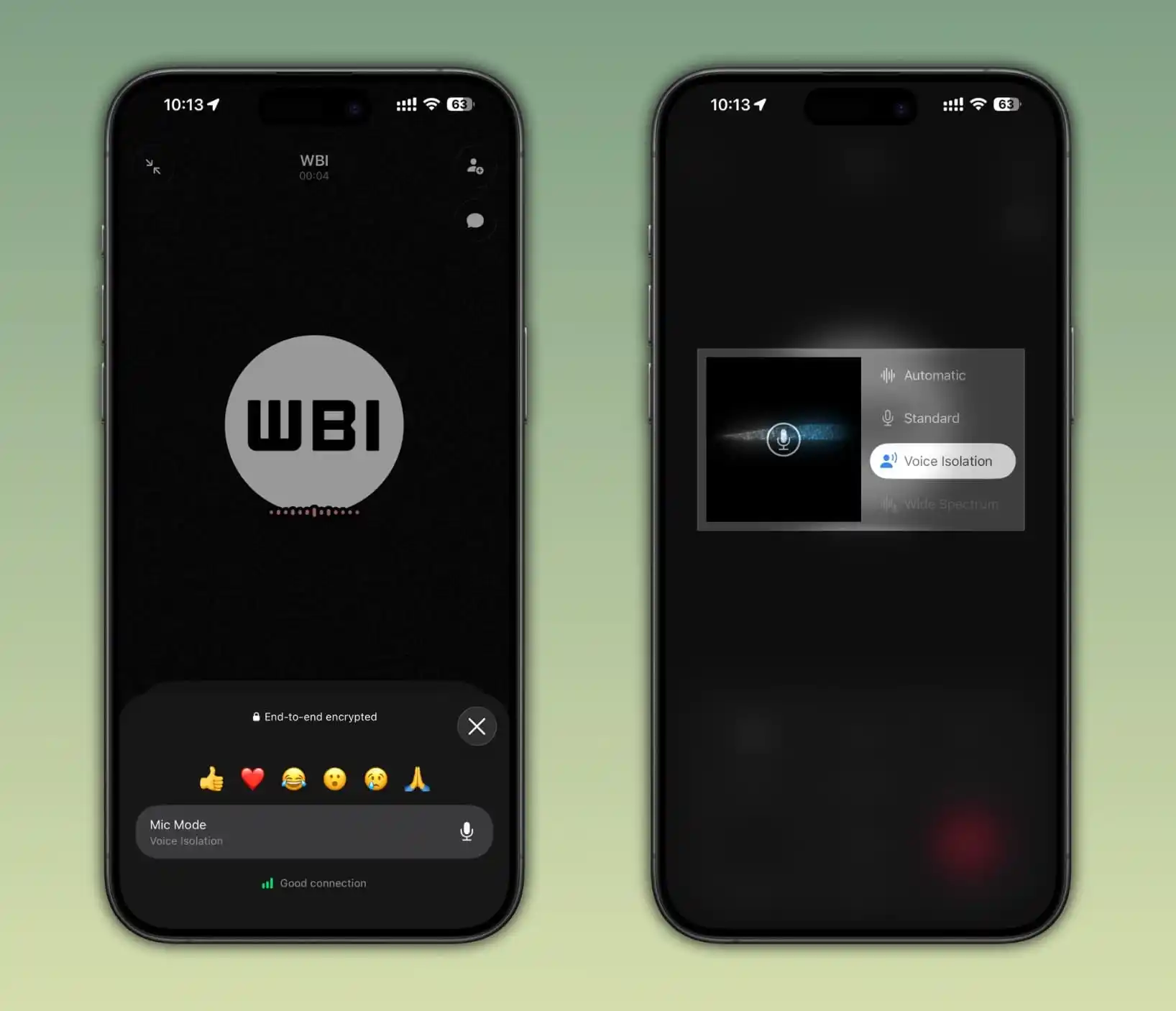
Which Mic Mode to Use: Voice Isolation vs Wide Spectrum
The real power of this update is not that you can change mic modes faster; it is that you can choose the right sound profile for every call. Automatic uses the mic mode that it thinks is best for your call, Standard keeps processing neutral, Voice Isolation prioritizes your voice and blocks ambient noises, and Wide Spectrum leaves ambient noises unfiltered.
When you are in a noisy café, on public transport, or near traffic, the voice isolation feature should be your default: it focuses only on your voice so the other person can hear you clearly. Flip to Wide Spectrum when you want to share the atmosphere—music at a party, questions in a meeting, or laughter at a family gathering. If you are unsure, try Automatic on supported devices and see how it handles everyday calls; for predictable environments, Standard is a reliable, no-frills baseline.
Requirements, Rollout, and Why You Should Set a Default
Before you rely on these controls, you need to know if your iPhone qualifies. Voice Isolation and Wide Spectrum require iOS 15 or later and work on iPhone XR, iPhone XS, and newer models. Automatic Mic Mode is available only on iPhones running iOS 18 or newer. The feature itself is rolling out gradually, so it may not be available to everyone right away; if you do not see the Mic Mode option yet, you will need to wait for an upcoming update.
Once it arrives, treat mic mode like you would a preferred camera setting: configure it once for your typical environment. Microphone settings persist between calls, so if you enable Voice Isolation, WhatsApp will continue using it for future calls until you pick another mode. The good news is that you will not need to repeatedly open the Control Center during a call, and you can easily change all settings within WhatsApp when you need a different sound profile. Pick a default, tweak when needed, and stop letting your surroundings dictate how you sound.





