

Why bother replacing your stock launcher?
Replacing your stock Android launcher with a gesture-focused alternative means swapping static home screens for dynamic shortcuts that shrink the steps between you and your most-used apps, giving you faster navigation, cleaner layouts, and a more personal workflow without turning your phone into a cluttered science project. This move suits anyone who feels held back by limited gesture navigation shortcuts, wants quicker app switching, and prefers a minimalist look that still supports serious productivity. Most stock launchers, including the one on Pixel phones, are serviceable but limited when it comes to advanced gestures and layout experimentation. If you keep wishing you could open more apps from the home screen with fewer taps, Android launcher alternatives are where the fun starts. One standout productivity launcher app, Comfer Launcher, keeps the same kind of clean aesthetic as a Pixel Launcher replacement while adding hidden gestures that make navigation feel more fluid and one-handed.
What makes a gesture-first launcher different?
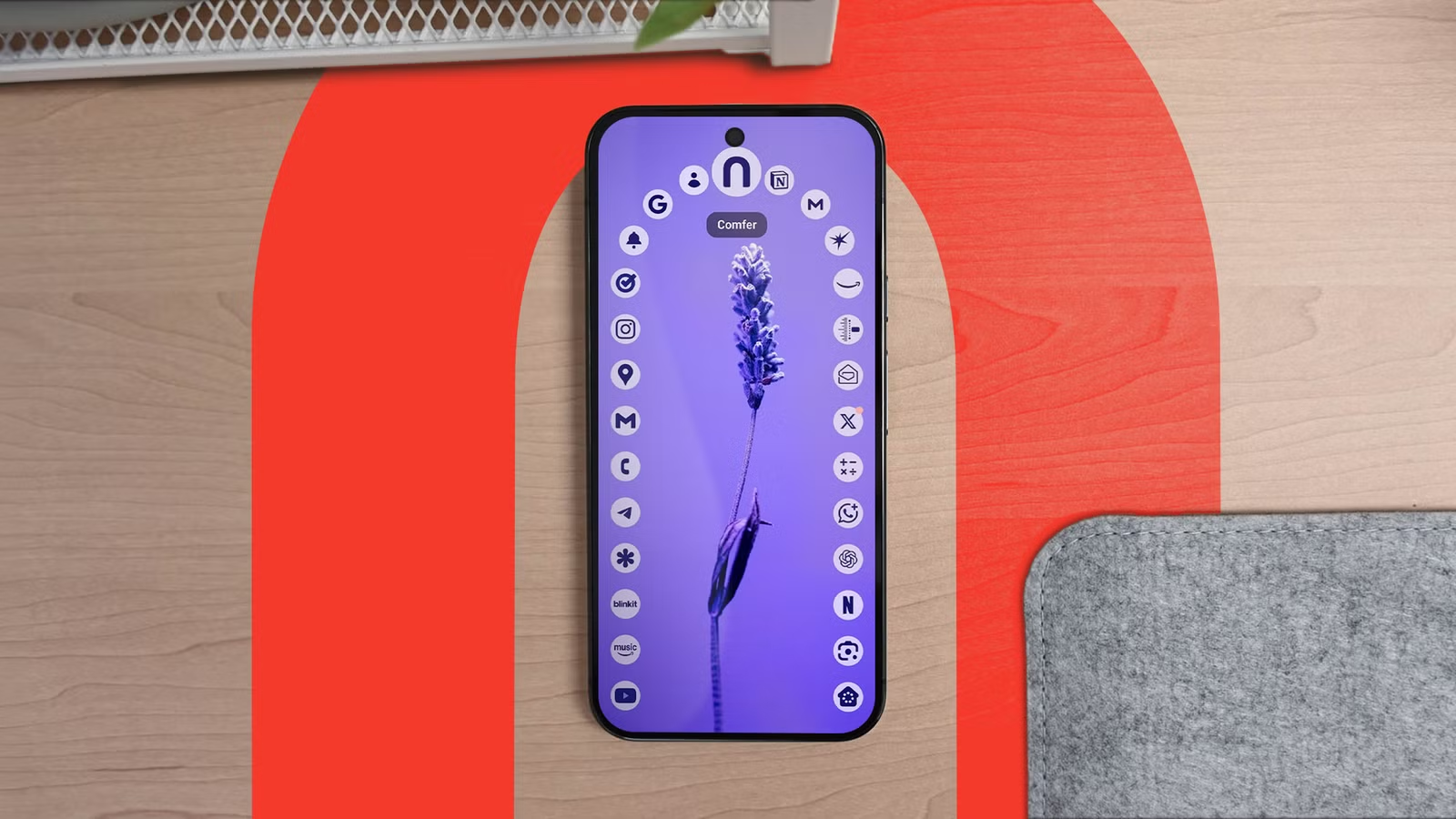
A gesture-first Android launcher reorganizes how you move around your phone. Instead of cramming every icon onto the home screen, it uses swipe patterns as invisible shortcuts. In Comfer Launcher, the main page only shows nine app shortcuts and a search bar at first glance, but the layout is hiding seven more apps that you can open with specific swipes. Those extra apps come from four right-angled swipes, a circular swipe, and simple left or right swipes on the home screen, so you get 16 launch points without visual clutter. This design feels surprisingly natural once your fingers learn the map. Everything is built around one-handed use, so you can reach all of your gesture navigation shortcuts with the thumb of your dominant hand. According to the launcher’s creator, the goal is a "harmonious marriage of minimalism and practicality" that never lets design get in the way of day-to-day tasks.
Step-by-step: switch to Comfer and set up hidden gestures
Think of this process as teaching your phone a new language. The idea is to keep the interface minimal while your muscle memory learns where your new shortcuts live. You only go through this setup once; after that, using the launcher feels as natural as unlocking your screen.
- Install your chosen Android launcher alternative from the Play Store and set it as the default home app through your system settings.
- Open the new launcher and arrange your nine visible home screen app shortcuts, focusing on the apps you tap many times every day.
- Assign hidden apps to gesture navigation shortcuts such as right-angled swipes, a circular swipe, and left or right swipes on the home screen.
- Practice each gesture for a few minutes until you can trigger the right app without looking, treating this as a quick muscle-memory warm up.
- Swipe up to open the alphabetical ring-style app drawer, then swipe left or right around the ring to find less-used apps and double-tap to open them.
- Use the launcher’s search interface for single-word searches, adapting to the alphabetical spiral instead of the usual QWERTY keyboard layout.
- Pay attention to moments of friction, like missing the right app in the ring or needing extra swipes to exit search, and tweak your gesture habits accordingly.
The biggest gotcha here is retraining your brain away from grid-based drawers and regular keyboards. Comfer’s alphabetical ring app drawer looks clever but can cause you to miss the app you want when swiping and double-tapping if you rush. The search interface uses an alphabetical spiral instead of Gboard, which works well for short queries but feels odd for longer typing. There’s also a minor annoyance: you may need to swipe twice to exit the search view because of an extra status bar pop-up, which breaks the otherwise seamless gesture flow.
Living with hidden gestures day to day
Once the initial learning curve is over, the pay-off is smoother multitasking and fewer hops between screens. With Comfer Launcher, you can keep your home screen minimal while still opening 16 apps from a single page, which cuts down on scrolling and hunting through folders. Hidden gestures reduce app-switching friction because you start to associate quick swipe patterns with specific tasks: a corner swipe for messaging, a circular swipe for your camera, or a side swipe for work tools. Everything from the one-handed focus to the unconventional app drawer works toward productivity without sacrificing a clean aesthetic. Even if parts of the layout, like the ring-style drawer, take time to get used to, you can move back to more traditional layouts if they do not stick. The important part is that gesture support now surpasses what you get on the stock Pixel experience, while still feeling calm rather than busy.
Is a gesture-based Pixel launcher replacement worth it?
If you’re content with your stock home screen, this change might feel like overkill. But if you often wish your phone felt faster without resorting to clutter, a gesture-based productivity launcher app is worth a weekend experiment. Comfer Launcher shows that minimalist design can coexist with powerful productivity features, giving you a cleaner home screen alongside clever shortcuts and customization tools. You will have to accept two common mistakes while you adapt: occasionally missing apps in the ring-style drawer when swiping and double-tapping too quickly, and needing two swipes to leave the search interface because of that extra status bar animation. However, these quirks don’t reduce the overall value. Comfer is described as "a harmonious marriage of minimalism and practicality" and remains one of the few Android launcher alternatives that feels like a steady Pixel Launcher replacement without adding ads or in-app purchases.





