

Why Android launcher gestures are worth your time
Android launcher gestures are touch-based shortcuts on your home screen that trigger actions like opening apps, searching, or pulling up the app drawer, letting you replace slow tap-and-scroll navigation with fast swipes that keep everything reachable with one hand.
If you feel like you are forever diving into your app drawer or juggling recent apps, gesture-based launchers can make your phone feel new again. Third‑party options such as Comfer focus on minimalist layouts and powerful gesture controls that stand out from more conventional home screens. The goal is not to cram in features but to let you move around your phone with less thinking and fewer taps. The main caveat: you need a bit of patience to retrain your fingers, because your old muscle memory from stock launchers will fight you at first.
Think of this approach as shifting from a grid of icons to a control surface. You keep your essential apps visible, but most of the power comes from what your fingers can do in the empty space between icons. If you are willing to practice for a few minutes, those empty spaces become the fastest routes to your most-used tools.
How gesture-focused launchers like Comfer change your home screen
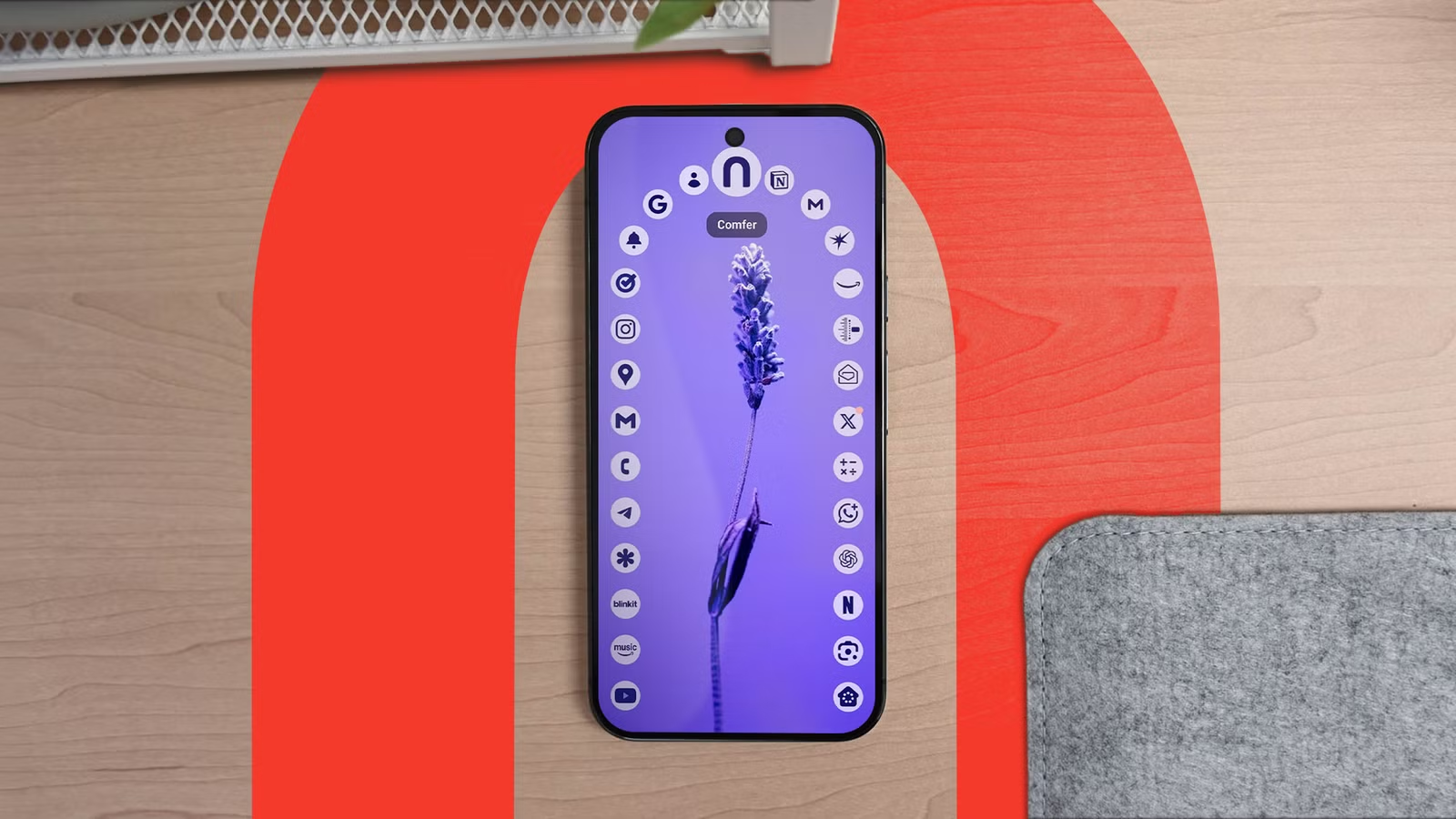
Some launchers focus more on how you move than what you see, and Comfer is a clear example of that approach. On paper, its home screen looks minimal: nine app shortcuts and a search bar. In practice, that layout hides a lot more power. The gesture controls are what set it apart from more familiar launchers, including stock options.
The big trick is that seven extra apps sit behind “hidden” gestures. You can access them with four different right‑angled swipes, a circular swipe, or simple left and right swipes across the home screen. Swipe up from the home screen and a unique app drawer appears, displaying your apps in an alphabetical ring that you scroll through by swiping left or right. As one reviewer put it, “I’ve never experienced a launcher this intuitive before,” and they noted that “the gesture support surpasses everything on Pixel Launcher.”
All of this lives inside a minimalist design that aims to stay out of your way. Comfer balances a clean look with practical choices so the interface rarely feels like it is blocking you. That mix of minimal visuals and gesture‑heavy control is what makes this style of launcher feel both calmer and faster once you adapt.
Step-by-step: building a custom launcher setup around gestures
You do not need to be a power user to benefit from Android launcher gestures, but you will get more out of them if you set things up with a bit of structure. Use this sequence as a guide so your home screen stays simple while your navigation gets faster instead of confusing.
- Start with a minimalist home screen: keep nine core app shortcuts plus a search bar so your main view stays clean and easy to scan.
- Assign your seven “hidden” apps to distinct swipe gestures such as right‑angled swipes, a circular swipe, and left or right swipes on the home screen so each move has a clear purpose.
- Practice one‑handed use for a few minutes, paying attention to how far your thumb can comfortably reach and which swipes feel most natural while holding your phone.
- Use the upward swipe to open the app drawer and get used to browsing the alphabetical ring of apps by swiping left or right until it starts to feel normal.
- Trim and rearrange home screen items by removing shortcuts you barely use, adding or moving widgets, and changing the wallpaper to support a focused, distraction‑free layout.
The main gotcha here is mental retraining. Moving from a traditional grid app drawer to an alphabetical ring layout requires you to spot apps in a row instead of a tight matrix, which can feel strange at first. The same goes for learning a new search interface that does not behave like a standard keyboard. Give yourself a short window of experimentation. If a gesture feels awkward or slow, move that action to a more comfortable swipe until your thumb’s natural paths match your most frequent tasks.
Why minimalism and gestures make phones easier to use
Minimalist launchers can sound barebones, but they often feel more productive because they clear away clutter while keeping powerful tools in reach. Comfer is described as “a harmonious marriage of minimalism and practicality,” with design choices that do not get in the way of daily use. The gesture layer then adds speed instead of extra complexity, which is why it can beat more feature‑packed stock launchers once you adjust.
Most customization in this style of launcher focuses on the home screen itself. You can remove app shortcuts, rearrange or add widgets, and change the wallpaper to fine‑tune how your main panel feels without drowning in options. That keeps your custom launcher setup focused on what you actually touch every day instead of a long list of buried settings. The result is a “frustration‑free experience” where minimalism does not mean losing useful features.
If you often use your phone with one hand, this combination is even more helpful. One subtle benefit noted by users is that they rarely need a second hand to type or swipe because the layout and gestures are built around reachability. When your launcher works with your grip instead of against it, you spend less time adjusting your hold and more time getting things done.
Is a gesture-heavy launcher right for you?
Gesture-heavy launchers are best for people who use their phones a lot and care about one‑hand comfort. If you are happy with rows of icons and long app lists, you may not feel a dramatic difference. But if you often bounce between a small set of apps, hiding those behind purposeful swipes can make your phone feel smoother and more personal.
The trade‑off is the learning curve. Your muscle memory from a standard launcher can be “flabbergasted” when you face new layouts and interactions. That said, one user reported mastering Comfer’s gesture controls in less than five minutes, then enjoying the combination of minimalism and practical design choices. If you try this style of setup, watch for two things: whether the gestures match your real habits, and whether any visual flourish slows you down. Keep what feels natural, discard what does not, and you will end up with a faster, calmer home screen that matches the way you use your phone.





